Spec reading basics
Smart home compatibility: a checklist before you buy
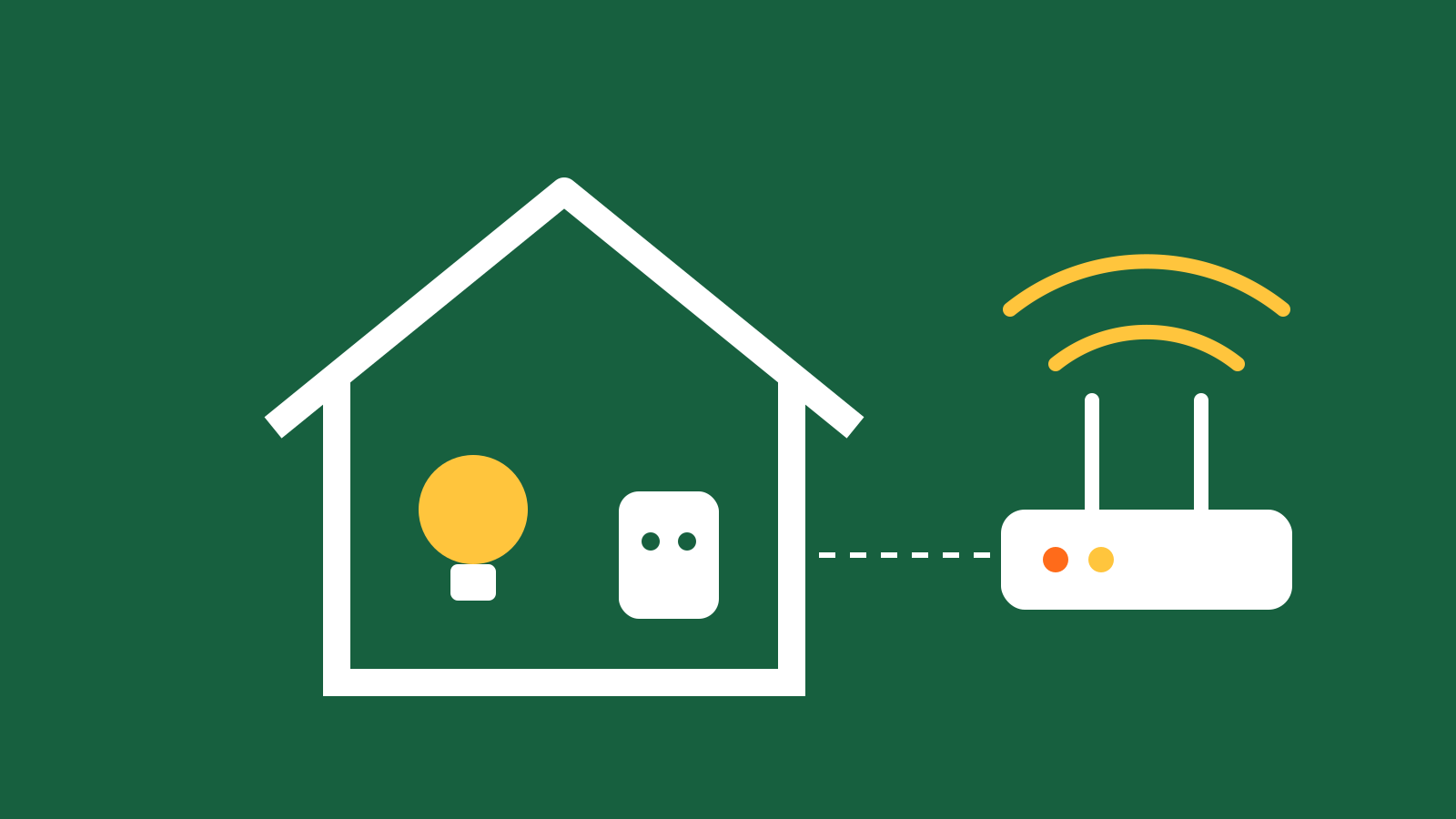
Smart home gadgets promise convenience: lights that turn on as you arrive, a plug that switches off the heater you forgot, a camera that shows you who is at the door. When they work together, they are genuinely useful. When they do not, they become a drawer of devices that each need their own app.
Almost every smart home problem comes down to compatibility. This checklist covers the questions to answer before you buy, so the next device you add joins the rest of your home instead of competing with it.
1. What does it connect through?
Smart home devices talk to your phone and to each other in a few different ways. The connection type is the first thing to check, and it is listed on every smart home product page on Ampora.
Wi-Fi devices connect straight to your home router. They are easy to set up and need no extra hardware. The trade-off is that each one takes a spot on your network, and a large number of them can crowd a basic router.
Bluetooth devices connect to your phone when it is nearby. They are simple, but control from outside the home is limited unless there is a hub.
Hub-based devices use a low-power wireless protocol and need a hub or bridge to connect to your network. They are often more reliable in larger homes and use less battery, which is why sensors and some bulbs prefer them. The hub may be sold separately.
Some newer devices support an open, shared standard designed to work across brands and ecosystems. If both your devices and your controller support it, setup is usually simpler. Check the listing for this, and treat it as "Not confirmed" if it is not stated.
2. Does your router support it?
This is the step most people skip. Many smart plugs, bulbs and cameras only connect to the 2.4 GHz band of your Wi-Fi, not the 5 GHz band. Most routers broadcast both, often under the same network name, and that is usually fine. But some routers or mesh systems need a setting changed during setup.
Before you buy, check whether your router has a 2.4 GHz band and whether it is turned on. The router's admin page or app will show this. If you have had trouble connecting a smart device before, this is the most likely reason.
3. Which app will you use?
Every smart home device has an app. Ideally you want as few of them as possible.
Check whether the device works with its own app only, or whether it can also be added to a broader smart home app you already use. Devices that join a shared app can be grouped into rooms, scheduled together and controlled from one place. Devices that only work in their own app are harder to combine.
Also check that the app supports your phone's operating system and version. This is part of the compatibility line on our product pages.
4. Do you use a voice assistant?
If you already have a smart speaker or display, the new device should work with that assistant. Listings normally say which assistants are supported. Look for the exact assistant you use, not just a general claim of voice control.
If you do not use a voice assistant, you can ignore this step. Every smart device still works through its app.
5. Does it need a hub or subscription?
Some products need extra hardware to work at all, such as a bridge for certain bulbs. Others work out of the box but offer more features with a hub. Read the "What's included" section to see whether the hub is in the box.
Cameras and some doorbells may also offer optional subscription plans for video history or advanced alerts. The listing should say what works without a plan. Before you buy, decide whether the free features are enough for you.
6. Where will it go?
Physical fit matters as much as wireless fit.
For smart plugs, check the plug type and the maximum load the plug can switch. A heater or kettle draws far more power than a lamp. The load limit is usually printed in amps or watts on the listing. Also check that the plug does not block the second socket on a double outlet.
For smart bulbs, check the base type and size, and whether the bulb fits your fixture. Bulbs that change color are often larger. If the fixture is on a dimmer switch, check whether the bulb supports that, as many smart bulbs need the wall switch left on.
For cameras, check whether the model is for indoor or outdoor use, how it is powered and whether it needs to be near an outlet.
7. What happens when the internet goes down?
It is worth knowing how a device behaves without an internet connection. Some keep working on your home network and some stop responding to the app until the connection returns. Many smart plugs and switches have a physical button so you can still use them manually. This detail is not always on the listing, so we mark it "Not confirmed" when it is missing.
8. Privacy and updates
Smart devices are small computers on your home network. A maker that releases regular firmware updates is a good sign. For cameras in particular, look for features such as a privacy shutter or the ability to turn recording off from the app.
Putting it together
Here is the checklist in short form:
- Connection type: Wi-Fi, Bluetooth, hub or the shared standard.
- Router: is the 2.4 GHz band available?
- App: does it join the app you already use?
- Voice assistant support, if you use one.
- Hub or subscription needed?
- Physical fit: plug type, load, bulb base, indoor or outdoor.
- Offline behaviour.
- Updates and privacy options.
You can browse the Smart Home category to compare products on connection type and compatibility, and use the Computer Accessories section if you are also setting up a home office. Starting with one room and one app, and adding devices that fit it, is the most reliable way to build a smart home you actually enjoy using.